TUTORIAL DETAIL
Create a Windows Bootable USB on Linux using WoeUSB
Step-by-step guide on installing and using WoeUSB to make a Windows bootable USB directly from Linux. Works on Ubuntu, Debian, Arch, and more
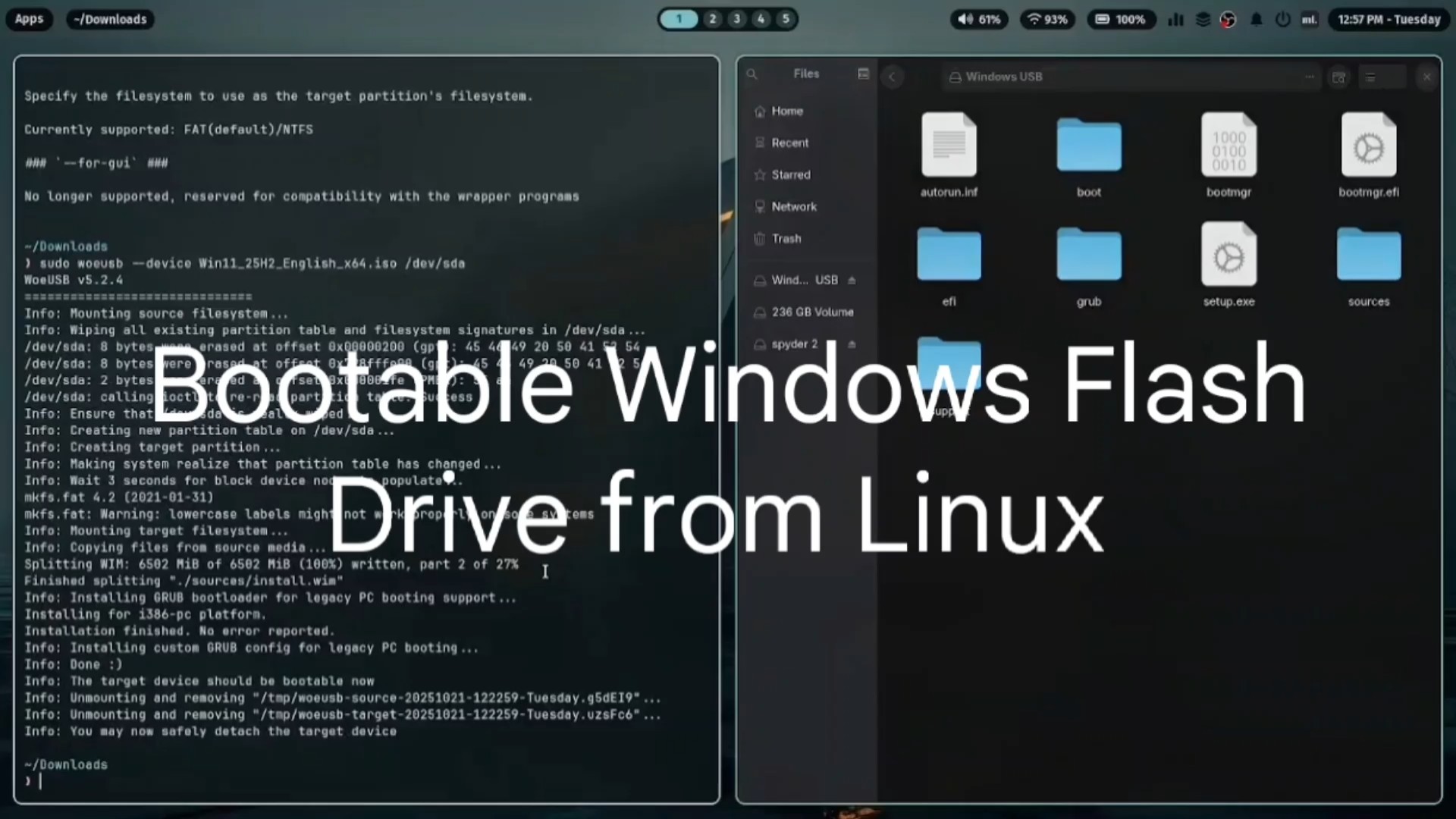
Watch on YouTube: https://youtu.be/8JD986g89G0
Introduction
If you're running Linux and need to create a Windows bootable USB drive, WoeUSB is the perfect tool.
This tutorial shows how to install WoeUSB and use both its GUI and command-line versions to create a Windows USB installer easily.
The steps in this guide are based on the walkthrough video: YouTube: https://youtu.be/8JD986g89G0
Step 1: Install WoeUSB
On Ubuntu / Debian
sudo apt update
sudo apt install woeusb
If not available, you can build it from source:
sudo apt install git build-essential
git clone https://github.com/WoeUSB/WoeUSB-frontend-wxgtk.git
cd WoeUSB-frontend-wxgtk
sudo make install
On Arch / Manjaro
yay -S woeusb
If not available, you get it from aur and build it:
sudo apt install git build-essential
git clone https://aur.archlinux.org/woeusb.git
cd woeusb
makepkg -si
Step 2: Identify Your USB Drive
Before writing the ISO, you must know your USB device path (for example, /dev/sdb).
You can identify it in two ways:
-
Using GNOME Disks → Open Disks, select your USB drive, and check the Device section (e.g.,
/dev/sdb). -
Using Terminal → Run:
lsblkLook for your USB size to find the correct device name.
Be very careful — choosing the wrong drive will erase all data on it.
Step 3: Create a Bootable USB using Terminal
You can also WoeUSB from the command line:
sudo woeusb --device Windowsfile.iso /dev/sdb --target-filesystem NTFS
Replace
/dev/sdbwith your actual USB device name (check usinglsblk).
Common Errors and Fixes
| Error | Fix |
|---|---|
| Target device is busy | Unmount partitions: sudo umount /dev/sdb* |
| Permission denied | Run with sudo |
| Installation fails midway | Reformat USB to NTFS or FAT32 first |
Verify the Bootable USB
Once done, you can test the USB by booting your PC and selecting the USB as the boot device from BIOS/UEFI.
Conclusion
WoeUSB makes it incredibly easy to create Windows installation media directly from Linux.
Whether you prefer the GUI or the terminal, it’s reliable, fast, and beginner-friendly.
- Written by Abhayabhi — 2025*